Articles / LORQAI
Why Do Bluetooth Headphones Have Audio Delay? 9 Fixes to Try
Find out why Bluetooth headphones lag behind video or games and follow nine practical troubleshooting steps for iPhone, Android, Windows 11, Mac and TV.
Introduction
You press a button in a game. The character jumps immediately, but the sound arrives a fraction of a second later. Or you watch a video and notice that the person's lips move just before you hear the words. The headphones are connected. The battery is charged. So why does Bluetooth audio feel late?
That gap is called audio latency: the time between an event producing sound and the sound reaching your ears. A little delay is normal in wireless audio. A bigger or suddenly noticeable gap may come from the headphones, the phone or computer, a video app, an audio setting, or a combination of them.
The important part is identifying which kind of delay you have. The fixes for a movie, a fast game, and a video call are not always the same. Start with this quick test before changing advanced settings.
The quick fix: try these seven checks first
- Play the same clip with your phone or computer's built-in speakers. Does the timing look right without Bluetooth?
- Try a second app or a locally saved video. If only one app is affected, check that app first.
- Disconnect and reconnect the headphones; then pause and restart the video or game.
- Move closer to the phone, laptop or TV and test away from crowded wireless equipment.
- Close voice-chat or meeting apps temporarily. They may activate the headset microphone and change the audio mode.
- Look for a low-latency or game mode in the headphone manufacturer's app, if your model actually has one.
- For precise gaming or music performance, compare wired headphones or a compatible dedicated low-latency gaming headset. This tells you whether Bluetooth is the main limitation.
What you should notice
If the delay disappears with the built-in speakers, the Bluetooth audio path is a useful place to investigate. If the same delay remains through speakers, the app, video file or device may be responsible instead.
A steady offset (the sound is always late by about the same amount) differs from stutters, crackles or cutouts that appear randomly. A steady gap often suggests a timing or buffering issue. Random interruptions can point to signal quality, interference or a software problem. These clues are not a diagnosis by themselves; they tell you where to look next.
Why Bluetooth headphones have a delay
Bluetooth audio is not sent as a single instant sound. The phone or computer prepares the sound, encodes it for wireless transmission, sends packets over a radio connection, and the headphones buffer and decode those packets before playing them. The operating system, app and headphones can all add time to this chain.
Buffering has a purpose: it helps playback continue when wireless conditions are imperfect. Less buffering can reduce delay, but it may also increase the risk of clicks or interruptions. A setting that is ideal for watching a film may not be ideal for a competitive game.
The screen also has its own timing. Some video players can hold the picture very slightly so that it meets the delayed soundtrack. That can make a movie look perfectly synchronized even though the wireless sound is not instant. During a live game, the software cannot freely delay what you see without affecting how responsive the game feels.
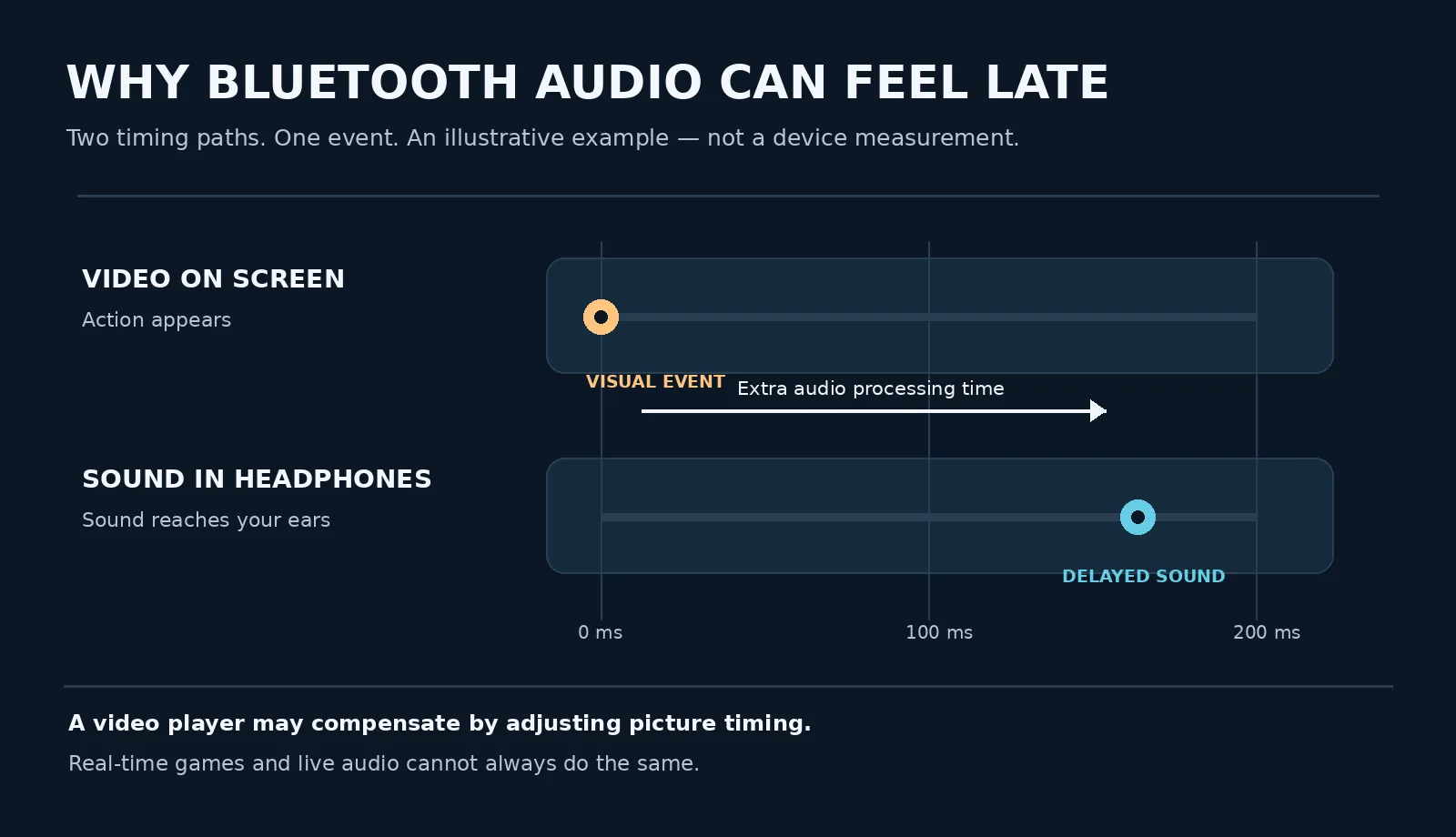
The diagram is an example, not a benchmark
The illustration above deliberately shows a visual event followed by a later audio event. It is a teaching diagram, not a measurement of any particular headphone, Bluetooth version, codec or operating system. Your actual delay may be smaller, larger or compensated by the software.
Step 1: decide whether it is video delay, game delay or a call problem
Video problem: you can see speech before hearing it. Test a second player and a second clip. If a television is involved, check whether it has an audio/video synchronization control.
Game problem: gunshots, footsteps, button presses or musical rhythm feel late, even though movie playback seems fine. Look for low-latency settings and consider the connection method, not just the volume or sound quality.
Call problem: sound quality changes or delay grows when the microphone activates. Check which microphone is in use, whether the app is also dealing with network delays, and whether the headset has changed audio mode.
Only one app: if a local video is synchronized but a streaming app is not, update or restart that app. If possible, turn off unusual audio-processing effects temporarily, one at a time, and compare again. Do not change five settings at once: you will not know which one helped.
Step 2: reconnect the headphones and test the signal
A temporary connection issue is one of the easiest things to rule out. Turn the headphones off and on, disconnect and reconnect them, and restart the affected app. If the delay started after an update, make sure the operating system, app and headphone firmware are current before trying deeper fixes.
For the next test, put the source device close to the headphones. Avoid hiding the phone behind a metal surface, using it across several walls, or placing a laptop right beside a cluster of USB 3 devices and wireless receivers. Radio interference more often causes interruptions than a perfectly constant time offset, but a poor connection may also force more buffering.
If you later choose to forget and pair the headphones again, first make sure you know how to put the model back into pairing mode. Re-pairing is not guaranteed to lower the inherent latency of that hardware.
Step 3: enable game mode or low-latency mode, if available
Some wireless earbuds and headsets offer a Game Mode, Low Latency Mode or a similar control in their companion app. Try it and repeat the same scene or rhythm test. You may hear fewer timing problems, although battery life, range or connection stability can change depending on the device.
The setting is not universal. AirPods, budget earbuds and gaming headsets do not all have the same options. Do not download random third-party 'Bluetooth booster' apps or assume that changing a secret system setting will make every headphone faster.
If your headset came with a dedicated USB wireless adapter, read its instructions. Many 2.4 GHz gaming headsets use a non-Bluetooth connection through their own dongle. It can be useful for responsive gaming, but it must be paired with the matching hardware.
Step 4: check the codec, but do not trust marketing alone
A Bluetooth codec is the method used to package digital audio for transmission. You may see names such as SBC, AAC, aptX, aptX Adaptive, LDAC or LC3. They describe different technologies and priorities, but the codec name alone does not tell you the real end-to-end delay.
A low-latency codec only helps when the transmitting device and the headphones support the necessary mode together. If either side lacks it, the pair may use a different mode. The app, operating system and headphone buffering still matter. Even a newer Bluetooth version number is not a promise of low-latency sound.
Qualcomm describes aptX Low Latency as designed for roughly 40 ms latency in a compatible implementation, and aptX Adaptive as supporting a low-latency mode. These are technology descriptions, not a universal measurement or guarantee for every device sold with an aptX logo.
Bluetooth LE Audio is another newer approach. It uses a different audio architecture and typically the LC3 codec, but it only works when the source, headphones, software and drivers actually support LE Audio. Owning a Bluetooth 5.x device does not prove that LE Audio is available.
Step 5: fix delayed sound on iPhone or Android
On iPhone, play a known video through the phone speaker first. Then connect the headphones and compare. Open Settings > Bluetooth to check the connection, turn Bluetooth off and back on if needed, and restart the affected app. If the manufacturer offers a companion app, look for firmware updates and supported listening modes. iPhone does not provide a universal control that forces every third-party Bluetooth codec or removes all wireless buffering.
On Android, make the same speaker-versus-headphone comparison. Try Settings > Connected devices or the Bluetooth settings area, reconnect the accessory, and restart both devices. Android menus vary by brand and version. If the delay appears in only one app, update that app before changing system-wide options.
You may find codec options in Android's Developer options, but they are not an automatic fix. An unavailable option may be ignored or reset when the headphones reconnect. For ordinary troubleshooting, verify the supported codec in the manufacturer's specifications rather than randomly forcing settings you cannot confirm.
Avoid resetting all network or wireless settings as a first step: such resets may remove saved Wi-Fi networks and Bluetooth pairings and are rarely needed just to investigate a video timing mismatch.
Step 6: fix delayed sound on Windows 11
First go to Settings > System > Sound and check that your Bluetooth headphones are the selected output device. Play a short local clip, then test the same clip through the built-in speakers. If the delay is isolated to Bluetooth, open Settings > Bluetooth & devices > Devices, disconnect and reconnect the headphones, and try again.
Microsoft recommends checking Windows updates and Bluetooth drivers, and provides a Bluetooth troubleshooter in the Get Help app. A driver update may solve a software compatibility problem, but it cannot turn unsupported headphones into genuinely low-latency hardware.
On some Windows 11 PCs, Settings > Bluetooth & devices > Devices includes 'Use LE Audio when available.' If you do not see that setting, the computer may not have compatible hardware or drivers. Even if it appears, your headphones must support LE Audio too. Windows 10 does not support this feature in the same way.
If sound suddenly changes when you join a meeting or turn on voice chat, see the microphone section below. Do not expect simply changing the sample rate from 44.1 kHz to 48 kHz to remove Bluetooth transmission delay.
Step 7: fix delayed sound on Mac
On a Mac, open Apple menu > System Settings > Sound, select Output and confirm that your Bluetooth headphones are selected. Try the same clip through Mac speakers, then through the headphones. This distinguishes a general playback problem from the wireless path.
If the audio changed after opening a meeting, voice-chat app or recording program, close anything using the headphones' built-in microphone. Apple documents that some Bluetooth headphones switch to a combined talking-and-listening mode while their microphone is active; that can reduce audio quality and create an experience that feels different from ordinary music playback.
Apple also recommends selecting the Mac's speakers and then selecting the Bluetooth headphones again from Control Center > Sound. This is a quick test worth trying before deleting devices or modifying advanced settings.
Step 8: check television audio-sync settings carefully
A television, streaming box and Bluetooth soundbar can each add their own processing. If dialogue is late through headphones but looks synchronized through the TV speakers, check the TV's sound output and any setting labelled AV Sync, Lip Sync or Audio Delay. The exact names depend on the model.
Pay attention to the direction of the problem. If the sound already arrives after the picture, adding more audio delay will make it worse. A control that delays the video, or permits an appropriate negative audio offset, can help on a compatible device. Some TVs only let you delay audio further and therefore cannot correct this particular direction of mismatch.
Test one change at a time with a scene containing clearly visible speech. Write down the original setting before you adjust it. If you cannot find a suitable compensation option, a TV-compatible low-latency transmitter/receiver pair or a wired audio path may be more reliable.
Step 9: understand why the sound changes when the microphone is on
Wireless headphones often behave differently when they must both receive music and send microphone audio at the same time. With traditional Bluetooth audio, switching from a higher-quality stereo listening path to a hands-free calling path can reduce sound quality. This is not identical to latency, but users often notice it at the same moment as a call or game voice chat starts.
If possible, test the laptop's built-in microphone while keeping the headphones for output, or try turning voice chat off temporarily. If the problem disappears only when the headset microphone is inactive, investigate the microphone/profile behavior rather than changing video export settings.
Newer Bluetooth LE Audio combinations can improve the experience, and some updated Windows 11 systems can even maintain stereo playback while using the mic. This depends on the exact PC, headphones and drivers; it should not be assumed for all devices.
What if the sound is late only in games?
An online game has at least two separate possible delays: network response and local audio playback. If the image reacts immediately but the sound effect follows late, local audio latency is a likely contributor. If the entire scene or another player's action is delayed, the internet connection or game server may also be involved.
Try the game's own audio setting, enable the manufacturer's verified low-latency mode, and compare using a wired headset or a compatible dedicated gaming dongle. A cinema-oriented Bluetooth headset may be great for music and movies while still feeling slow for fast rhythm games.
When recording music or playing a digital instrument, the timing requirements can be stricter still. Wired monitoring or an audio interface designed for low-latency monitoring is typically the more predictable choice.
Do you need to buy new headphones?
Not immediately. First confirm that the problem occurs in more than one app and that the speaker-versus-headphone comparison points to Bluetooth. Update software, check a supported low-latency mode and determine whether the delay is a new fault or the normal behavior of that model.
If you shop later, examine tested end-to-end latency for your intended device and activity, not just the Bluetooth version or codec logo. Check transmitter compatibility, headphone features and whether a low-latency mode requires a particular USB adapter. Marketing claims describe ideal implementations; what matters is your actual setup.
A two-minute troubleshooting checklist
- Video is out of sync: compare built-in speakers, then a second video app.
- Only games feel late: try a confirmed game mode, a wired headset or the supplied gaming adapter.
- Audio quality drops during a call: check whether the headset mic has activated a different mode.
- Sound stutters or cuts out: move closer and check wireless interference or battery level.
- Windows 11: verify the output, update drivers and look for LE Audio only if supported.
- TV: change AV sync carefully; do not add audio delay if sound is already behind picture.
- Still unsure: test the same headphones on a second source device before replacing them.
Frequently asked questions: Is Bluetooth delay normal?
Yes, some buffering and processing delay is normal. Whether you notice it depends on the headphones, the source, the app and whether the video player compensates. An unexpected large delay or a sudden change deserves troubleshooting, but 'some latency' does not automatically mean the headphones are broken.
Will Bluetooth 5.3 or 5.4 automatically fix audio lag?
No. The Bluetooth version tells you something about the radio capabilities, but real audio latency depends on supported audio profiles, codecs, device processing and software. LE Audio, for example, requires actual hardware and driver support; a version number by itself is insufficient.
Why does YouTube seem synchronized while games feel late?
A video player can sometimes adjust picture timing to compensate for the audio path. A game must respond to your actions in real time, so a late sound effect can remain noticeable even when movies appear normal.
Can I force aptX or LC3 on any phone?
No. Both sides and the relevant software must support the chosen codec or audio mode. A setting that is grayed out or resets after reconnecting does not prove the headphones are defective.
Do AirPods and other popular earbuds have zero latency?
No wireless earbuds have literally zero processing time. Some device and app combinations compensate better than others. If one app has a severe mismatch, compare another app before blaming the earbuds alone.
Why does sound quality become worse when I open a call?
A microphone can trigger a different Bluetooth audio mode on some devices. This is a well-documented behavior for traditional headset modes; newer LE Audio combinations may handle simultaneous microphone use differently.
Can I measure the exact delay from a simple video?
You can compare whether two setups feel better or worse using the same repeatable clip, but an ordinary visual estimate is not a laboratory measurement. Precise latency testing needs a controlled method that captures both the visual/audio event and sound output. Treat online 'millisecond' numbers cautiously unless the test method is described.
The takeaway
Bluetooth headphones can add delay because sound must be processed, transmitted and buffered before you hear it. The useful question is not simply 'Which codec is fastest?' but 'Where is my particular delay coming from?'.
Compare speakers and headphones, try a second app, check headset microphone use and supported low-latency features, and adjust TV sync only in the correct direction. If real-time timing is essential, a compatible low-latency gaming connection or a cable may be the most straightforward answer.
A good fix is one you can test. Make one change, repeat the same clip or game moment, and keep only what actually improves your setup.
Listen & explore
- Microsoft Support — Fix Bluetooth connected but no sound issue on Windows (external platform)
- Microsoft Support — Check if Windows 11 supports Bluetooth LE Audio (external platform)
- Microsoft Support — Configuring Bluetooth LE Audio quality settings (external platform)
- Apple Support — If Bluetooth headphone sound quality is reduced on Mac (external platform)
- Apple Support — Connect a Bluetooth device with your Mac (external platform)
- Google Android Help — Fix Bluetooth problems on Android (external platform)
- Qualcomm aptX — aptX Low Latency (external platform)
- Qualcomm aptX — aptX Adaptive (external platform)